Start as a user
You want a capable assistant on your own computer: chat with a model that fits your machine, talk to it, and let it check things for you on a schedule. No programming needed.
Install, try it, make it yours
Install 10–15 min
On a Mac, download AbstractFramework-Installer.pkg and double-click it (the first time, allow it under System Settings > Privacy & Security > Open Anyway). On macOS or Linux you can paste one line instead; Windows has its own line on the install page.
curl -LsSf https://raw.githubusercontent.com/lpalbou/AbstractFramework/main/scripts/install.sh | shPress Return when it asks whether to start at login. When it says AbstractFramework is ready., your browser opens the console, already signed in.
Pick an engine and a model 10 min
The first-run guide opens by itself. In Local engines, click Install on Ollama or LM Studio if none is found (on Apple Silicon, MLX is already there). In Default model, click Use recommended defaults, then Download on the recommended model and Use as default when it finishes. The catalog opens on the models that fit this computer.
Prefer a cloud model? Add your key under Providers (OpenAI, Anthropic, OpenRouter, Portkey or any OpenAI-compatible service) instead.
Say hello 5 min
Open the Apps step (or the console’s Apps tab) and click Install, then Open, on the Assistant card: it starts already signed in, in the menu bar on macOS or the system tray on Windows and Linux. Its global shortcut, ⌘⇧Space by default (change it in Settings → Appearance → Global shortcut), opens the palette from any app; on a Mac it needs the Accessibility permission. The console’s Sandbox tab runs a quick chat against your defaults, and AbstractCode in the browser (/apps/code/) keeps longer conversations with files. Prefer a terminal? The installer put abstractcode on your PATH: sign it in once with the abstractcode login --token <token> line from the installer’s summary.
Talk to it 5 min
Every install includes local voice: Supertonic text-to-speech and Whisper speech-to-text, on CPU. In the Assistant, press ⌘⇧V (Ctrl+Shift+V on Windows and Linux) for voice conversation mode: listen, send, speak, listen again. The Assistant captures the microphone itself; speech-to-text and text-to-speech run on the gateway.
Let it work for you 10 min
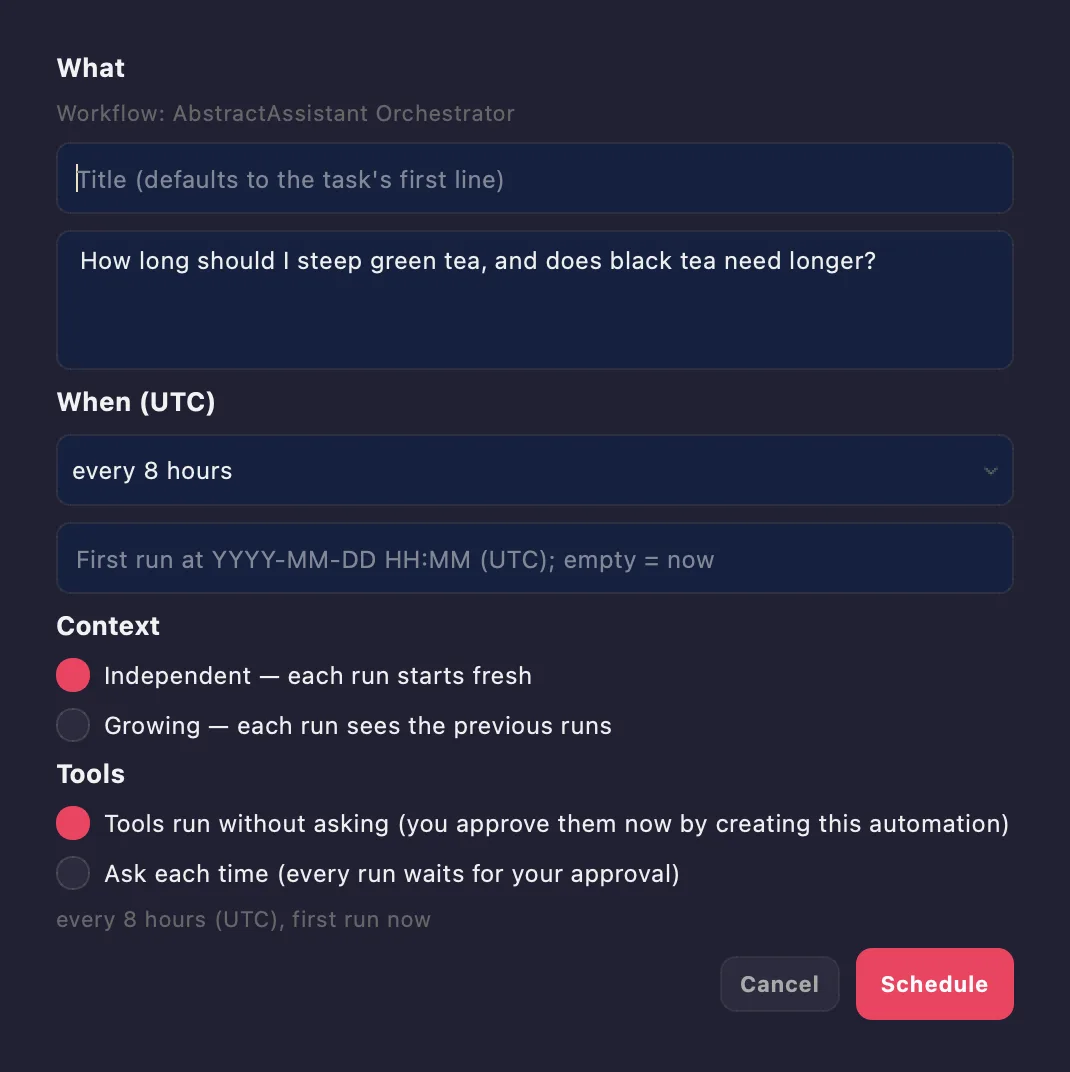
In an Assistant conversation, click the clock button and choose Schedule this conversation…: every 8 hours, say, with Independent context. The switcher’s Automations tab shows each run as a chat turn, and the tray icon notifies you only when a run needs you. How automations work
Then make it yours
A daily digest
Ask: "Search the web for news about <a topic you follow> and summarize the three most important items with links." Then schedule it every 24 hours with growing context, so each run can say what changed.
Talk hands-free
Open voice mode (⌘⇧V, or Ctrl+Shift+V) and ask for a recipe while you cook. Replies are spoken as they stream from the gateway.
Continue on another device
Start a conversation in the Assistant, then open AbstractCode in the browser: every client reads the same gateway sessions. Turn on Local network in the console’s Network tab to reach it from your phone.
Worth knowing
127.0.0.1 only until you choose otherwise, and your chats, runs and settings live in your user folder (~/Library/Application Support/AbstractGateway on macOS, ~/.local/share/abstractgateway on Linux). A cloud provider sees what you send it; a local model does not leave your machine.AbstractAssistant.app bundle), and in the system tray on Windows and Linux, which run the same Python app from the console’s Apps page or pip, without an app bundle, and are not validated to the macOS standard. On Linux the desktop needs a system tray (on GNOME, the AppIndicator extension). The console's Sandbox and the browser apps work everywhere.